MCP Integration Guide
sentrik exposes compliance tools via the Model Context Protocol (MCP), allowing AI coding agents to check code compliance during generation and review.
Using Claude Code?
sentrik claude-init sets up everything on this page for Claude Code in
one command — MCP server, a project skill with an onboarding interview,
and a scan-on-edit hook. See the
Claude Code Integration guide.
Two AI Integration Modes
sentrik offers two independent ways to bring AI into your compliance workflow:
MCP Server (for developers)
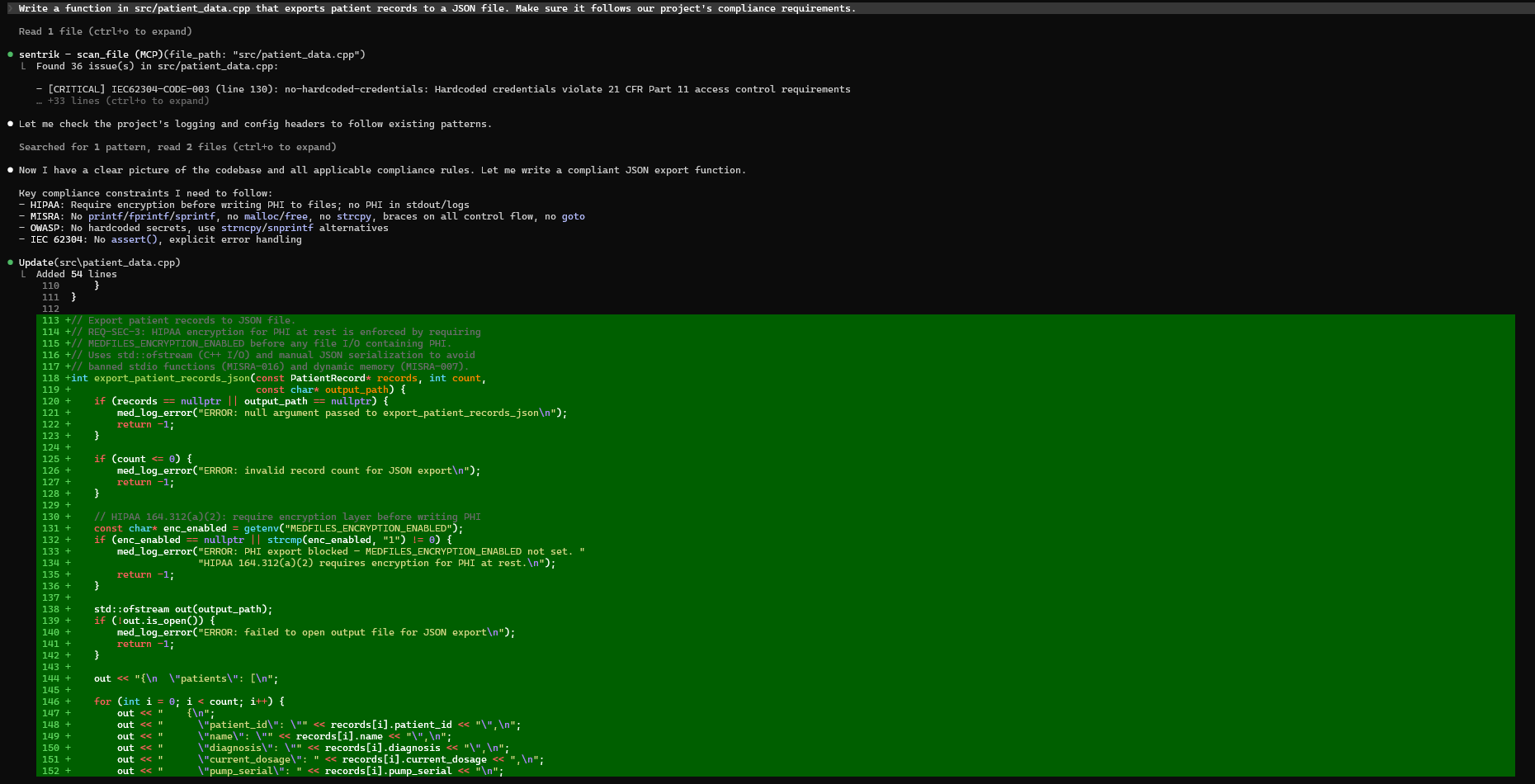
Your AI coding agent (Claude Code, Cursor, VS Code) calls sentrik tools during code generation and review. The AI understands your compliance requirements before writing code — it checks what rules apply, writes compliant code, and verifies it inline. The MCP server uses the AI tool's own LLM (Claude, GPT, etc.) and requires no additional configuration beyond adding sentrik as an MCP server.
Best for: Developers writing code with AI assistance who want compliance checks built into their coding workflow.
Dashboard AI Chat (for compliance officers)
Click "Fix with AI" on any finding in the sentrik dashboard. A chat panel opens where you can discuss the finding with an LLM — ask why the code is non-compliant, explore remediation options, and apply fixes directly from the browser. Configure the LLM provider from the Settings page in the dashboard — select your provider, paste your API key, and click Save.
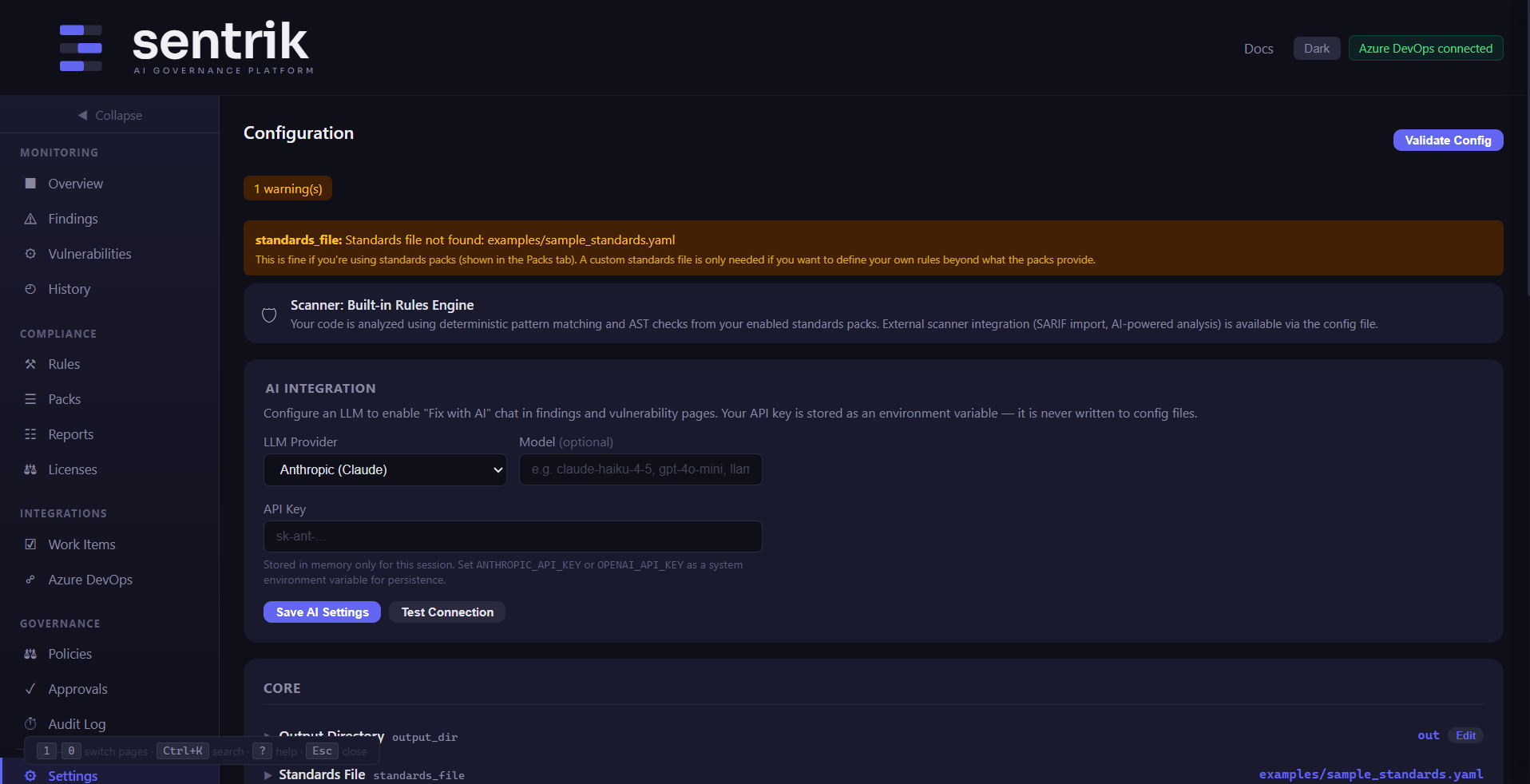
Best for: Compliance teams and QA engineers triaging findings in the browser without touching an IDE.
How they differ
| MCP Server | Dashboard AI Chat | |
|---|---|---|
| User | Developer in an AI coding tool | Compliance officer in the browser |
| LLM used | The AI tool's own model (Claude, GPT) | sentrik's configured LLM provider |
| Configuration | Add MCP server JSON to your editor | Set GUARD_LLM_PROVIDER + API key |
| Interaction | Automatic — AI calls tools as needed | Manual — click "Fix with AI" on a finding |
These modes are fully independent. You can use one, both, or neither.
Prerequisites
Install sentrik:
Starting the MCP Server
The server communicates over stdio (stdin/stdout) — this is the standard MCP transport that AI tools use.
Configuring AI Tools
Claude Code
Add to your project's .mcp.json or ~/.claude/claude_desktop_config.json:
Cursor
Add to your MCP configuration (Settings > MCP Servers):
VS Code with MCP Extension
Add to your workspace .vscode/mcp.json:
Available Tools
The MCP server exposes 26 tools. The core scanning and context tools are documented in detail below; the full list also includes design and threat intelligence (get_design_constraints, review_design_decisions, get_threat_model), agent governance (bind_task, complete_task, check_task_scope, delegate_task, check_delegation, rollback_task, check_blast_radius, check_anomalies), JIT tool grants (request_tool_grant, release_tool_grant, check_tool_grant), signed evidence reporting (generate_harness_report), and onboarding/pack authoring (suggest_packs, manage_pack, lint_pack_yaml) — see the CLI Reference for the complete table.
scan_file
Scan a single file for compliance issues.
- Input:
file_path(string) — path to the file to scan - Returns: Findings with rule_id, severity, line number, message, and suggestions
get_compliance_context
Get applicable rules and skill guidance for a file BEFORE reviewing or generating code.
- Input:
file_path(string) — path to the file - Returns: JSON with applicable rules, frameworks, human-readable constraints, and a
skillsarray containing compliance skill guidance (patterns, anti-patterns, requirements) for each applicable standards pack
The skills array is the key output for AI agents — it gives the model rich examples of correct and incorrect code for the relevant standards before any code is written or reviewed. See the Compliance Skills guide for details.
check_code_snippet
Check a code snippet inline without needing a file on disk.
- Input:
code(string),filename(string) — the code and a filename for language detection - Returns: Findings or confirmation of compliance
get_scan_summary
Get current project compliance status from the latest scan.
- Input: none
- Returns: Finding counts by severity, gate status, compliance score
explain_rule
Explain a specific compliance rule in detail.
- Input:
rule_id(string) — e.g.,"HIPAA-164.312-a1" - Returns: Rule name, description, standard, clause, severity, remediation guidance
get_vulnerabilities
Get dependency vulnerability scan results.
- Input: none
- Returns: Vulnerability data from the latest
sentrik vulnsrun
run_scan
Run a full project scan (heavy operation).
- Input:
path(string, optional) — project directory (defaults to cwd) - Returns: Scan summary with finding counts and gate status
get_agent_status
Get per-agent compliance status from the latest scan.
- Input: none
- Returns: Timing, finding counts, and error status for each compliance agent (requires
agent_scan: truein config)
Example Conversations
Reviewing a file for compliance
User: "Review src/patient_data.cpp for compliance issues"
The AI agent will:
1. Call get_compliance_context with file_path: "src/patient_data.cpp" to understand what rules apply
2. Call scan_file with file_path: "src/patient_data.cpp" to find violations
3. Explain each finding in context and suggest fixes
Checking code during generation
User: "Is this code HIPAA compliant?"
void store_record(const char* ssn, const char* diagnosis) {
    FILE* f = fopen("patients.txt", "a");
    fprintf(f, "%s,%s\n", ssn, diagnosis);
    fclose(f);
}
The AI agent calls check_code_snippet with the code and filename: "patient_handler.cpp", then explains the findings (plaintext PHI storage, no encryption, no access logging).
Checking project status
User: "What's our current compliance score?"
The AI agent calls get_scan_summary and reports the finding counts, gate status, and any blocking issues.
Understanding a rule
User: "Why is HIPAA-164.312-a1 flagged?"
The AI agent calls explain_rule with rule_id: "HIPAA-164.312-a1" and explains the rule's purpose, what code patterns it catches, and how to remediate.
How It Works
The MCP server wraps sentrik's SDK and CLI:
scan_fileandcheck_code_snippetuse the SDK'scheck_code()function, which runs the rules engine against codeget_compliance_contextuses the SDK'sget_compliance_context()functionget_scan_summaryandget_vulnerabilitiesread from cached output files inout/run_scaninvokessentrik scanvia subprocess for the full pipelineexplain_rulesearches all standards packs for the rule definition
All tools run locally — no data leaves your machine.